If you bought a website design from megmart.in and want to install it without stress, you’re in the right place.
This guide explains everything in plain words. No tech talk. No confusing terms. Just simple steps you can follow one by one. Even if this is your first WordPress site, you can still do it.
The full setup usually takes less than 5 minutes if everything is ready.
What You Need Before Starting
Before installing the Megmart website design, make sure these things are ready.
Basic Requirements
- A domain name
- Web hosting (cheap hosting link with free domain)
- WordPress installed on your hosting
- Megmart website design file (the file you purchased)
Important to know:
This website design works only on WordPress. It will not work on HTML or other platforms.
Step-by-Step Installation Guide
Follow these steps in the same order. Do not skip anything.
Step 1: Login to WordPress Dashboard
- Open your website admin link
Example:yourwebsite.com/wp-admin - Enter your username and password
- Click Login
Now you are inside the WordPress dashboard.
Step 2: Install Required Plugins
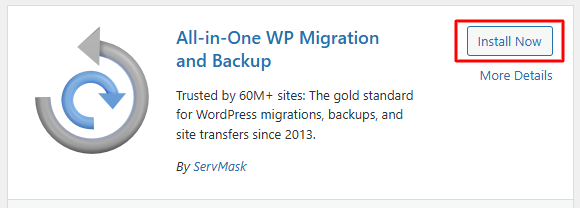
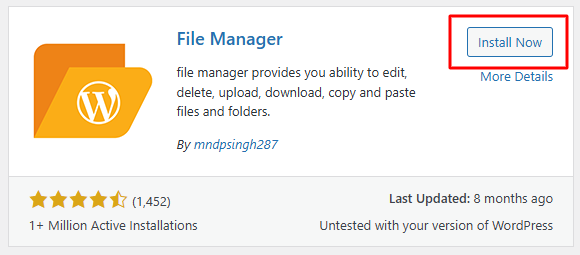
You need two free plugins for this setup.
Plugins to Install
How to Install Plugins
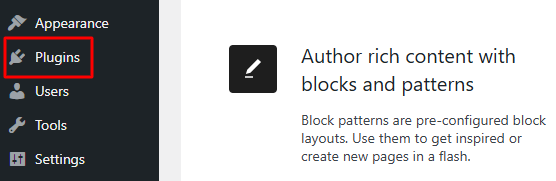
- Go to Plugins
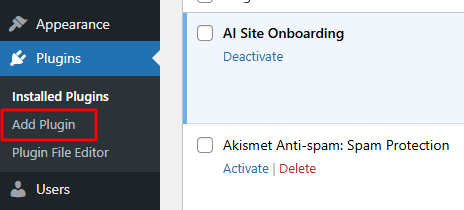
- Click Add New
- Search the plugin name
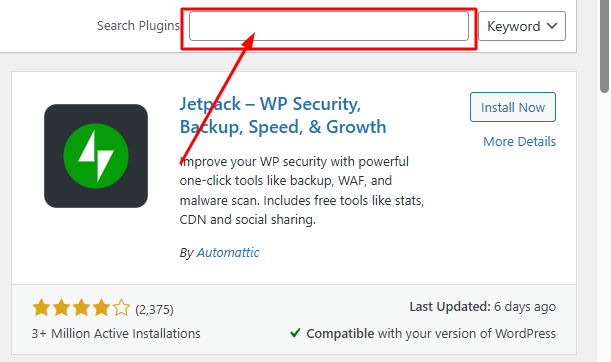
- Click Install
- Click Activate
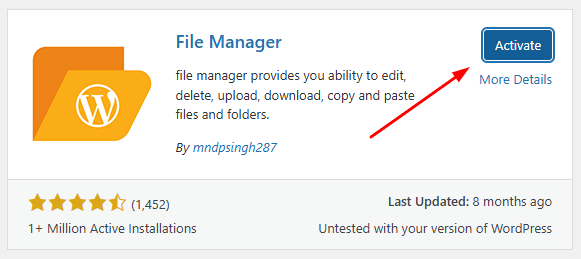
Do this for both plugins.
Step 3: Open WP File Manager
After installing the plugins:
- Go to WP File Manager
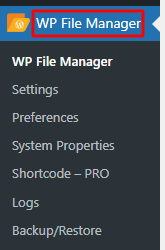
- Open the main folder (usually
public_html) - Find the file named .htaccess
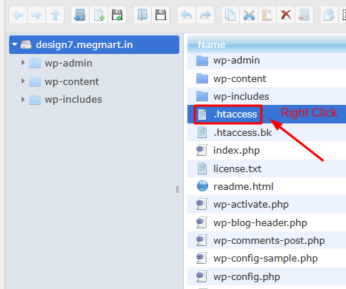
Step 4: Edit the .htaccess File
This step helps WordPress accept large files during import.
- Right-click on .htaccess
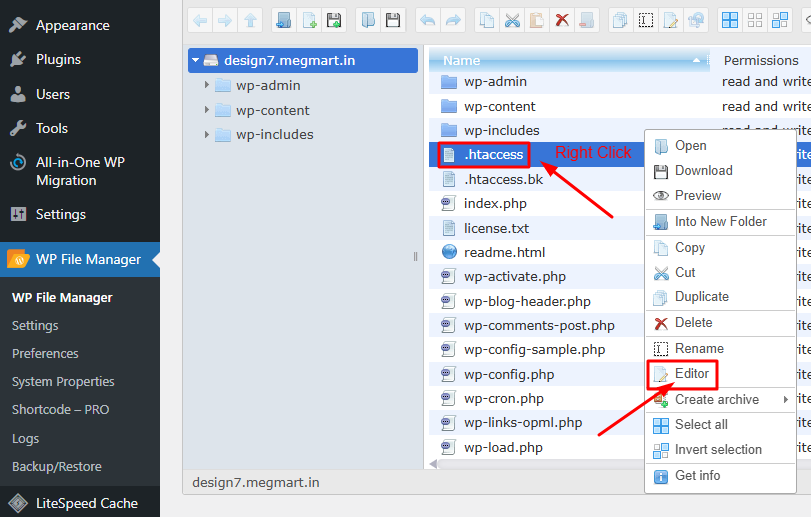
- Click Edit
- Scroll to the bottom
- Paste the code below at the end
#Start All_in_One_WP_Migration
php_value upload_max_filesize 10240M
php_value post_max_size 10240M
php_value memory_limit 1024M
php_value max_execution_time 5000
php_value max_input_time 5000
# END All_in_One_WP_Migration
- Click Save
- Close WP File Manager
Step 5: Import the Website Design File
Now comes the main part.
- Go to All-in-One WP Migration
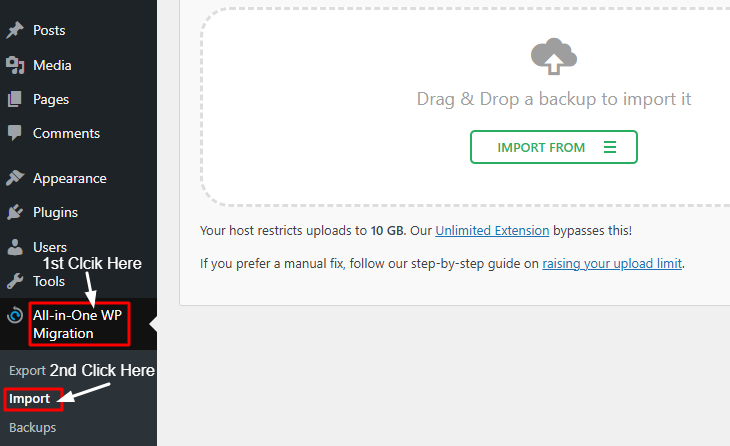
- Click Import
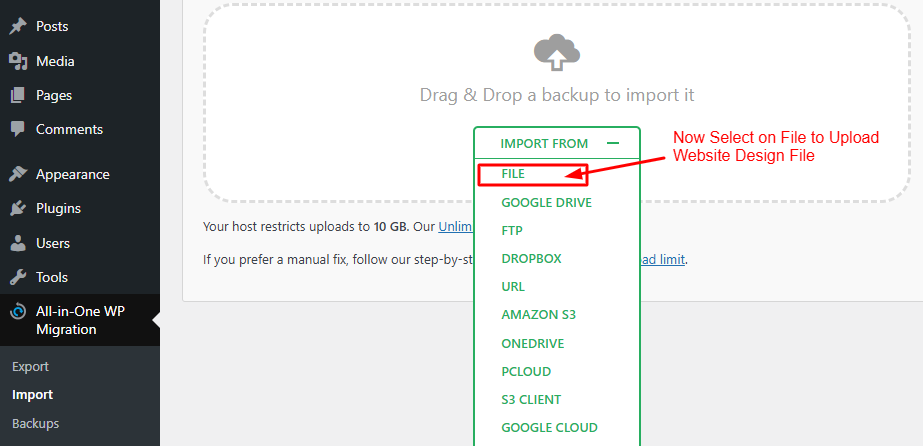
- Select the Megmart website design file
- Wait for the upload to start
Step 6: Do Not Interrupt the Import
While importing:
- Do not turn off the internet
- Do not refresh the page
- Do not click anywhere
Just wait calmly.
Step 7: Click “Proceed” on the Popup
During import, a popup will appear.
- Click Proceed
- Let the process complete
Step 8: Finish the Installation
When everything is done:
- Click Finished
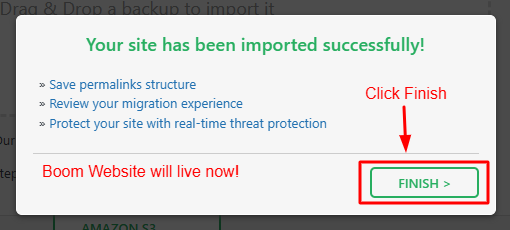
That’s it.
Your website is now ready. Simple and fast.
Login Details Information
- The username and password are provided inside the website design file
- Check the Notepad file included with the design
Important Security Tip
After logging in for the first time:
- Go to Users → Profile
- Change the username
- Change the password
Do this immediately for safety.
How can I fix a 404 error on my website?
If there is a 404 error, follow these steps. If there is no 404 error, you do not need to do anything.
- Log in to your WordPress dashboard.
- Go to Settings in the left menu.
- Click on Permalinks.
- Select the Post name option.
- Click on Save Changes.
Common Installation Time
| Task | Time Needed |
|---|---|
| Plugin installation | 1 minute |
| File edit | 1 minute |
| Import process | 2–3 minutes |
| Total time | Around 5 minutes |
Need Help After Installation?
If your website does not work properly after install:
- Take a screenshot
- Contact support on Telegram
- Send proof of purchase
- Contact within 24 hours of purchase
For extra installation services or additional work, you can also contact through the same Telegram link.
Final Words
Installing the Megmart website design is very easy when you follow the steps properly. You don’t need to be a developer. Just stay patient and don’t rush the process.
If you follow this guide step by step, your site will be live in minutes.
If you face any problem, help is available.
Now go ahead and set up your website 👍
FAQs – Website Design on WordPress Easily
1. Does this website design work on all platforms?
No. It works only on WordPress.
2. Can I install this design without hosting?
No. You must have hosting and WordPress installed first.
3. Is the All-in-One WP Migration plugin free?
Yes, the free version is enough for this setup.
4. What should I do if the import stops?
Do not refresh. Wait. If it fails, contact support with a screenshot.
5. Is it necessary to change the login details?
Yes. Always change the username and password after first login.
Best-Selling
-

-
 ₹249.00
 -
 ₹549.00
 -

StorySimple Pro – Website Design
₹399.00